How to Install Microsoft SQL Server & SSMS on Windows 10/11
hello Guys Please follow these step for downloading.
Step 1: Download the SQL Server Installer
Go to the Microsoft SQL Server download page:
SQL Server Downloads
Choose the appropriate edition:
For most users, the "Developer" or "Express" edition is suitable. Click "Download now" under the edition you want to install.
Step 2: Run the Installer
Locate the downloaded installer:
The file should be named something like SQL2019-SSEI-Expr.exe for the Express edition or SQL2019-SSEI-Dev.exe for the Developer edition.
Launch the installer:
Double-click the downloaded file to start the installation process.
Step 3: Choose the Installation Type
Select the installation type:
You will be presented with several options. Choose "New SQL Server stand-alone installation or add features to an existing installation".
Step 4: Follow the Installation Wizard
Global Rules:
The installer will check for global rules and prerequisites. Once this is complete, click "Next".
Microsoft Update:
Choose whether you want to use Microsoft Update to check for updates. This is optional. Click "Next".
Install Setup Files:
The installer will install setup files and check for any issues. Once done, click "Next".
Step 5: Installation Type
Feature Selection:
Select the features you want to install. For a basic installation, ensure at least "Database Engine Services" is selected. Click "Next".
Instance Configuration:
Choose whether to install a default instance or a named instance. For simplicity, you can choose the default instance. Click "Next".
Server Configuration:
Configure the SQL Server service accounts. You can use the default settings. Click "Next".
Step 6: Database Engine Configuration
Authentication Mode:
Choose the authentication mode. "Windows Authentication mode" is recommended for simplicity, but you can choose "Mixed Mode" if you need SQL Server Authentication. If you choose Mixed Mode, you will need to set a password for the SQL Server system administrator (sa) account.
Specify SQL Server Administrators:
Add the current user as an SQL Server administrator by clicking "Add Current User". Click "Next".
Data Directories:
Configure the directories for your database and log files. You can use the default settings or customize them as needed. Click "Next".
TempDB Configuration:
Configure the TempDB settings if necessary. Click "Next".
MaxDOP Configuration:
Configure the Max Degree of Parallelism if necessary. Click "Next".
Step 7: Installation
Ready to Install:
Review the installation summary. If everything looks correct, click "Install".
Installation Progress:
The installer will begin the installation process. This may take some time. Once the installation is complete, click "Close".
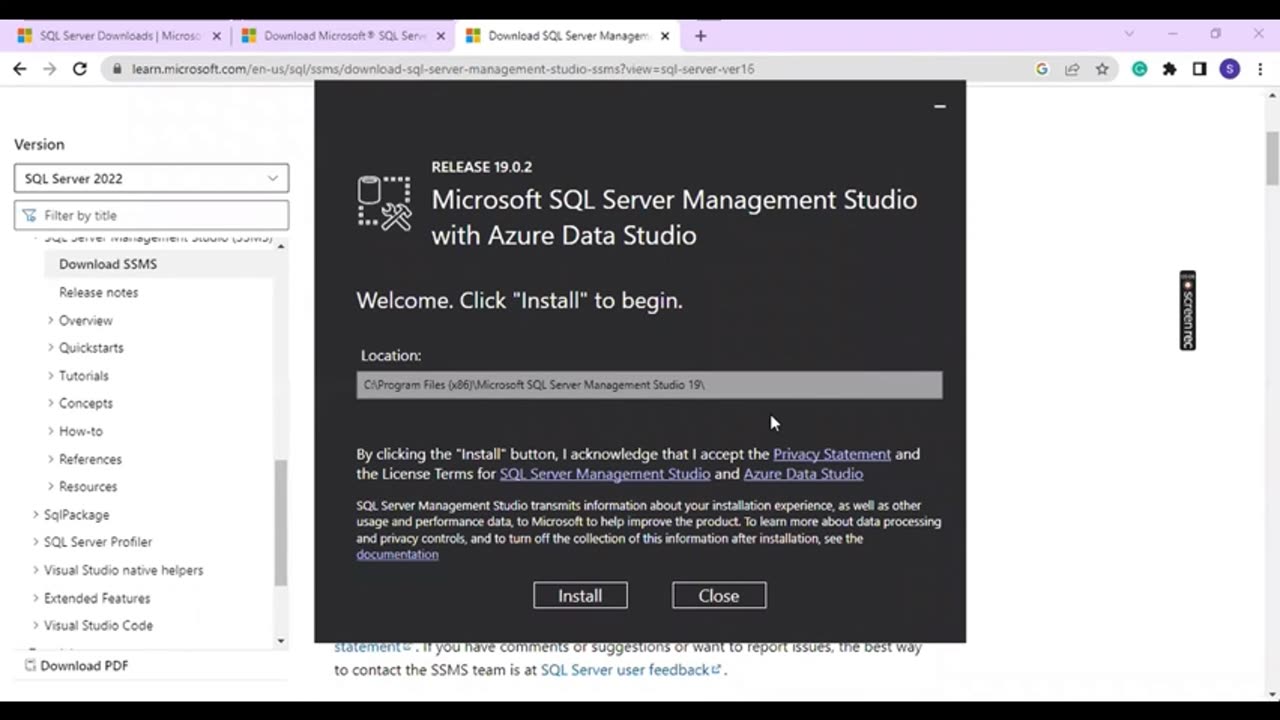
Step 8: Install SQL Server Management Studio (SSMS)
Download SSMS:
Go to the SSMS download page.
Download the installer:
Click the download link to get the latest version of SSMS.
Run the SSMS installer:
Double-click the downloaded file to start the installation process.
Follow the SSMS installation wizard:
Click "Install" and follow the prompts to complete the installation.
Step 9: Connect to SQL Server using SSMS
Open SSMS:
Launch SQL Server Management Studio from the Start menu.
Connect to the SQL Server instance:
In the "Connect to Server" window, enter the server name. For a default instance, you can use localhost or .. For a named instance, use localhost\InstanceName.
Choose the authentication method and enter the necessary credentials.
Click "Connect":
You should now be connected to your SQL Server instance and can start creating and managing databases.
Troubleshooting Tips
Firewall Configuration: If you have connectivity issues, ensure that the SQL Server instance is allowed through the Windows Firewall.
SQL Server Services: Ensure that the SQL Server services are running. You can check this using the SQL Server Configuration Manager or Services.
___________________________________________________________________
#techcommunity #itprofessionals #techtips #mssqlserver #mssql #datascience #dataanalytics #dataentryjobs
#sqlserver
#SQL
#microsoftsqlserver
#sqldatabase
#databasemanagementsystems
#dataanalytics
#sqlserver
#SQL
#microsoftsqlserver
#sqldatabase
#databasemanagement
#dataanalyticstraining
-
 2:55:01
TimcastIRL
4 hours agoTrump Calls Democrat RETARDED, Whistleblower EXPOSES Democrat FRAUD | Timcast IRL
198K53 -
 LIVE
LIVE
Akademiks
4 hours agoMeg Thee Stallion spent $2 mil on lawyers to win $59k vs Milagro! 50 Cent BURIES Diddy. SNAKES HIM!
1,067 watching -
 LIVE
LIVE
SpartakusLIVE
4 hours agoI'M BACK from Florida || The RETURN to the Spartan Stronghold
484 watching -
 1:38:45
Joker Effect
3 hours agoWhy is everything so DIFFICULT?! Cuffem, Gypsy Crusader, WVAGABOND is getting SUED?! IDuncle is mad!
23.5K1 -
 54:46
54:46
Flyover Conservatives
23 hours agoInside the Kill Zones: Kidnappings, Camps & the War on Nigerian Christians Exposed - Judd Saul | FOC Show
20.6K1 -
 1:02:35
MattMorseTV
5 hours ago $20.94 earned🔴We just got the CONFIRMATION.🔴
38.4K74 -
 1:24:52
Glenn Greenwald
7 hours agoTrump Admin Preparing for New Regime-Change War Against Venezuela; Who Should Win Anti-Semite of the Year? See the Top 10 Finalists | SYSTEM UPDATE #551
117K67 -
 23:12
23:12
Jasmin Laine
9 hours agoCBC TURNS on Carney—Poilievre Speech Goes VIRAL, ROASTS Canada’s Elites
28.1K17 -
 1:16:21
The Daily Signal
7 hours ago $4.12 earned🚨BREAKING: Tim Walz Self-Destructs Over BILLIONS in Fraud Under His Watch, War Crime Allegations
25.2K8 -
 9:08
9:08
China Uncensored
10 hours agoIndia And China Are Headed To Another War
10.7K10