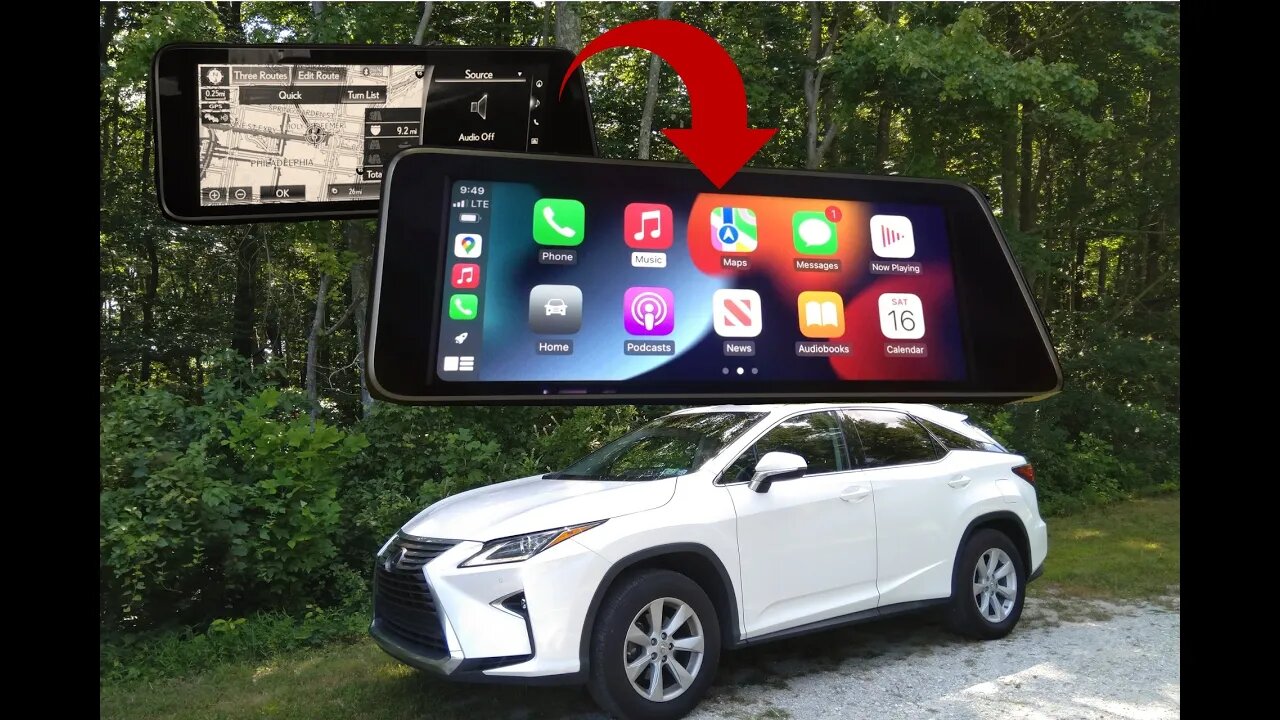
Lexus Apple CarPlay & Android Auto Upgrade Installation Step by Step
# 2017 Lexus RX350
Infotainment/Navigation Upgrade to CarPlay
## Supply
1. CarPlay & Android Auto module + interface cables
In the video, I install a RoadTop CarPlay unit for Lexus:
https://www.ebay.com/itm/384400476740
* I have NO affiliation with them and hope to post a review video after some use.
* For now, I've used CarPlay features but will test Android Auto too.
## Tools
1. Panel removal tools (plastic)
2. Ratchet wrench
3. 10mm socket
4. Some towels
## A. Radio Unit Removal
1. Open storage lid and remove central console panel/trims.
2. Remove (silver) trims around the radio.
3. Remove black trim where Start/Stop button is attached.
4. Disconnect Start/Stop connector.
5. Remove two 10mm bolts holding the radio:
+ one on the driver side
+ the other on the passenger side
6. Push down shift boot and remove shift knob.
7. Cover the shift stick with towels (to protect the radio unit later).
8. Remove the radio unit, and disconnect the connector at the top.
## B. Screen Removal
1. Remove front and back trims around the screen.
2. Remove back cover of the screen.
3. Remove three 10mm bolts/nuts on the screen bracket.
4. Lay towels in the front.
5. Remove the screen and place it on the towels.
## C. Connect CarPlay Unit Cables
1. Connect LVDS cables.
2. Connect CAN cables.
3. Connect USB / Video cables.
4. Connect RF Antenna cable.
5. Change Toggle Switch according to instructions.
## D. Connect to Radio Unit Host
For each connector, chain them together this way:
1. Remove the original cable;
2. Plug it to the female cable to CarPlay;
3. Plug the carplay male to the host socket, where the original cable is removed.
Do this for the following cables/connectors:
1. Power or CAN cables.
2. Audio out cables.
## E. Connect to Screen
1. Route LVDS cable from the back of the radio to screen.
2. Chain the LVDS connectors with the original cable/connector.
## F. Test CarPlay
1. Reconnect Start/Stop and start the car.
2. Switch Audio Source to AUX.
3. Turn your phone's wifi, bluetooth, and connect to CarPlay.
4. Test the features.
## G. Reassembly
1. Optional: Route the USB cable to glove box. The unit has wireless carplay so USB is not required.
2. Place the CarPlay unit in the back behind Radio. Arrange the cables and tuck them in the back.
3. You can stick the antenna to the side of the radio box.
4. Put the radio unit back, attach to the clips, 10mm bolts, and reattach the trims.
5. Reinstall the screen with 3x10mm bolt/nuts, back cover, front and back trims.
DONE.
Hope this video is informative.
Be safe, stay dirty. Enjoy the work!
God bless!
-
 LIVE
LIVE
Nikko Ortiz
2 hours agoVirtual Reality Milsim... | Rumble LIVE
148 watching -
 1:00:48
BonginoReport
4 hours agoFBI Nabs Jan 6 Pipe Bomber Suspect After 5 Years - Nightly Scroll w/ Hayley Caronia (Ep.190)
134K46 -
 LIVE
LIVE
Sgt Wilky Plays
3 hours agoSweating the Ranked Plays
76 watching -
 LIVE
LIVE
ZWOGs
7 hours ago🔴LIVE IN 1440p! - More PvP and Trials before wipe - ARC Raiders! - Come Hang Out!
57 watching -
 LIVE
LIVE
EvilT4000
1 hour agoStarting with Apex and then moving on to Season 1 of Warzone? What? 😱 Should be really fun!
51 watching -
 22:27
22:27
The White House
6 hours agoPresident Trump and The First Lady Participate in the National Christmas Tree Lighting
21.1K18 -
 LIVE
LIVE
OFFICIAL Jovan Hutton Pulitzer Rumble
3 hours agoThey Are Weaponizing The Existing Cracks In America
101 watching -
 LIVE
LIVE
LFA TV
23 hours agoLIVE & BREAKING NEWS! | THURSDAY 12/04/25
416 watching -
 1:40:10
Kim Iversen
5 hours agoThe UK Has Covered Up THOUSANDS Of Grooming Gang Rapes | IDF Soldiers Are Killing Themselves At Record Levels
92.8K67 -
 25:05
25:05
Nick Shirley
4 hours ago $3.17 earnedConfronting The Deported Migrant Scammers in NYC
20.2K12