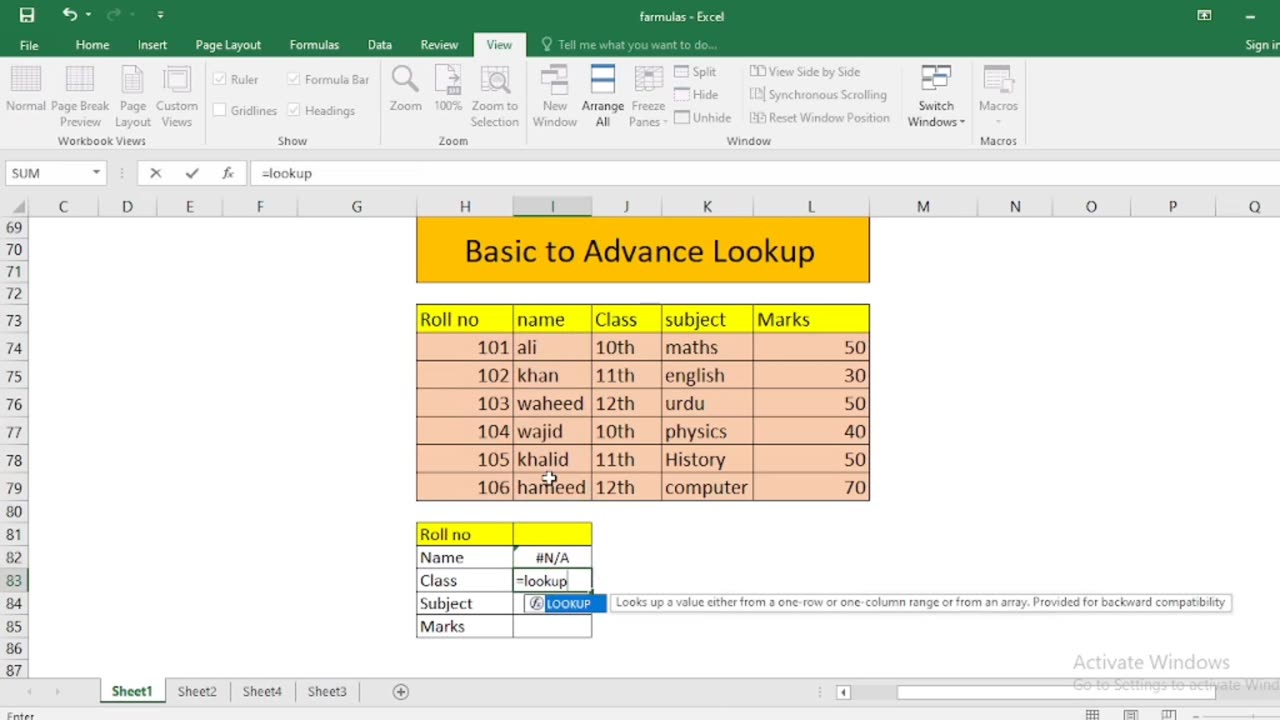
Basic to Advanced Lookup Formula in Excel
In Excel, lookup functions are essential for finding and retrieving data from a table or range. Here are some basic to advanced lookup functions and scenarios in Excel:
Basic Lookup Functions:
VLOOKUP (Vertical Lookup):
Use when you have a vertical table of data, and you want to find a value in the leftmost column and return a corresponding value from a specified column.
Syntax: =VLOOKUP(lookup_value, table_array, col_index_num, [range_lookup])
HLOOKUP (Horizontal Lookup):
Similar to VLOOKUP but for horizontal tables. It searches for a value in the top row and returns a corresponding value from a specified row.
Syntax: =HLOOKUP(lookup_value, table_array, row_index_num, [range_lookup])
Intermediate Lookup Functions:
INDEX & MATCH (Dynamic Lookup):
Combine the INDEX and MATCH functions for more flexible and powerful lookups. It allows you to search for a value using the MATCH function and then return a corresponding value from a range using INDEX.
Syntax: =INDEX(return_range, MATCH(lookup_value, lookup_range, [match_type]), [column_number])
LOOKUP (Vector Lookup):
Searches for a value in a one-row or one-column range and returns a value from the same position in another one-row or one-column range.
Syntax: =LOOKUP(lookup_value, lookup_vector, result_vector)
Advanced Lookup Functions:
CHOOSE (Choose from a List):
Use the CHOOSE function to select an item from a list based on its position in the list.
Syntax: =CHOOSE(index_num, value1, value2, ...)
OFFSET (Dynamic Range Lookup):
OFFSET function returns a reference to a cell or range that is a specified number of rows and columns from a specified cell or range.
Syntax: =OFFSET(reference, rows, cols, [height], [width])
XLOOKUP (Modern Lookup):
XLOOKUP is a more versatile and user-friendly lookup function introduced in Excel 365. It can perform both vertical and horizontal lookups and handle arrays as well.
Syntax: =XLOOKUP(lookup_value, lookup_array, return_array, [if_not_found], [match_mode], [search_mode])
MATCH with Wildcards (Partial Matching):
Use the wildcard characters (* and ?) with the MATCH function to perform partial matches within a dataset.
Syntax: =MATCH(lookup_value&"*", lookup_range, 0) for prefix matching.
INDEX & SMALL (Return Multiple Results):
INDEX and SMALL can be combined to return multiple matching values from a dataset, useful for scenarios where you need to list all occurrences of a specific value.
Syntax: =INDEX(range, SMALL(IF(criteria = value, ROW(range)-MIN(ROW(range))+1), ROW(1:1)))
Each of these functions serves different lookup needs, from simple vertical and horizontal lookups to more complex dynamic and conditional lookups. The choice of function depends on the specific requirements of your Excel project.
-
 LIVE
LIVE
StoneMountain64
2 hours agoArc Raiders EXPEDITION Money Making is Insane
182 watching -
 2:16:21
Side Scrollers Podcast
4 hours agoTwitch has a SERIOUS Problem + Leaflit’s VIRAL Interview + More | Side Scrollers
11.8K3 -
 LIVE
LIVE
Barry Cunningham
18 hours agoBREAKING NEWS: President Trump Hosts Cabinet Meeting & Makes MAJOR Announcement!
2,070 watching -
![Wall Street CRASHED Bitcoin DOWN To $80,000!! [Heres Proof] | EP 1389](https://1a-1791.com/video/fww1/dc/s8/1/G/E/S/E/GESEz.0kob-small-Wall-Street-CRASHED-Bitcoin.jpg) 1:31:03
1:31:03
Simply Bitcoin
3 hours ago $0.84 earnedWall Street CRASHED Bitcoin DOWN To $80,000!! [Heres Proof] | EP 1389
11.1K1 -
 LIVE
LIVE
ROSE UNPLUGGED
21 hours agoBridging the Divide: Joe Manchin on Politics, Principles, and People First
13 watching -
 1:02:19
Timcast
3 hours agoMedia MELTS DOWN Over New Media Pentagon Takeover
117K52 -
 2:04:40
Steven Crowder
6 hours agoWar Criminal Pete Hegseth: Debunking the Media's Newest BS Smear Campaign
412K281 -
 59:57
59:57
The Rubin Report
4 hours agoPress Gasps When Told Trump’s Brutal Plan for Venezuela
45.3K89 -
 4:19:56
Benny Johnson
5 hours ago🚨Trump Cabinet Meeting LIVE Now in White House As Somali Fraud EXPOSED, Third World Deportations
85.5K68 -
 1:16:36
Sean Unpaved
3 hours agoAbdul Carter BENCHED In First Quarter AGAIN | UNPAVED
9.38K