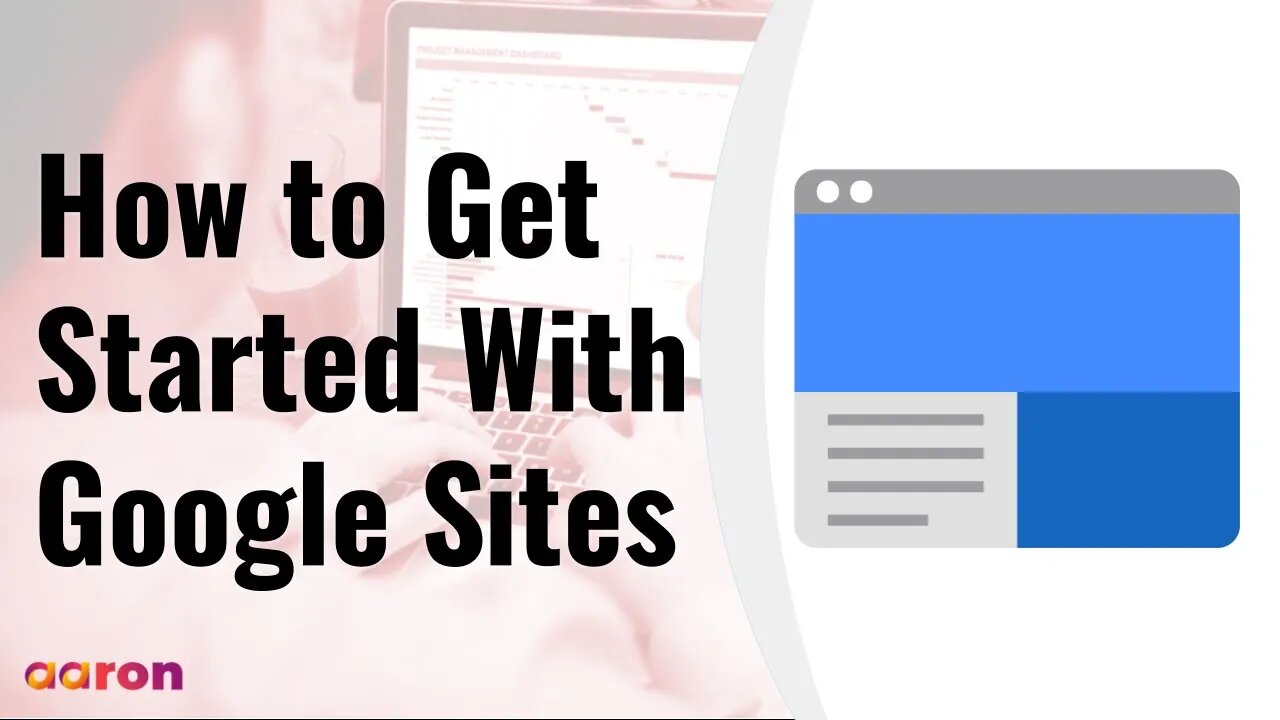
How To Get Started With Google Sites
#GSuite #HowTo #GetStarted #GoogleSites #GSuiteForBusiness #AaronPteLtd #GoogleForEducation
Aaron Private Limited is Google Cloud Partner
https://cloud.withgoogle.com/partners/detail/?id=aaron-private-limited
Website http://aaron.sg/
Facebook https://www.facebook.com/AaronPteLtd
Instagram https://www.instagram.com/aaronpteltd/
__________
0:00 Introduction
0:08 What is Google Sites?
0:41 Accessing Google Sites
1:01 Creating a Google Sites
1:25 Adding Content
2:15 Adding Pages
2:45 Customizing the Design
3:09 Sharing a Google Site
3:29 Publishing a Google Site
_________
✅ What is Google Sites?
Google Sites is a collaborative tool that allows you to easily create websites, host course curricula, and publish content on the web. You can create a class site to share materials and course information with students, parents or students guardians, or students create their own e-portfolios to showcase their work. And Google Sites integrates with Google Drive so you can embed files for a polish final look.
✅ Accessing Google Sites
To get started, signed in to your Google Account. Then go to sites.google.com/new
✅ Creating a Google Site
Create a new site by clicking a colourful plus button in the bottom right corner. Once your site is created, give it a name by clicking the “Untitled Site” space in the upper left corner. And since the first page will be your Site’s homepage, type in a title in the header too.
✅ Adding Content
In the right column, you’ll see three tabs, Insert, Pages and Themes. The insert tab allows you to easily embed objects on a page, including text boxes, videos, images and more. You can also add files from your Google Drive, including class materials, like Google Slides. Just choose your file and hit the insert button. Then you can drag the element around the page to position it. You can also resize it and configure it to work within your overall design scheme. Under the insert tab, you’ll also find pre-made and customisable layout blocks and other organisational elements, such as page dividers, buttons and more.
✅ Adding Pages
The Pages tab allows you to create new pages and subpages with your Site. Click the plus button at the bottom of the Pages tab to add new pages or link to a web address. New pages automatically appear in the navigation menu on your page. If you like to hide a page, click the three dot menu next to it and select “hide from navigation”.
✅ Customizing the Design
The themes tab allows you to choose preformatted overall theme for your Site. Fonts, color scheme, and design elements are pre-created as themes and can be edited from the insert tab.
✅ Sharing a Google Site
Add a collaborator clicking the Plus Person button in the upper right corner. You may invite others to collaborate by entering their email addresses, just like how you share, Google Doc, Slide, Sheet or Drawings.
✅ Publishing a Google Site
When you’re ready to publish your Site, click the blue publish button in the top right corner. Notice the section below the website addresses: “who can view my site”. Select manage to update viewing settings. Be sure your Site permissions allow the desired audience to view the Site. Once your viewing permissions are set, click Publish. After Publishing your Site, click View at the bottom of the window to see how it appears to the viewers. Unlike Google Docs, Slides, Drawings or Forms viewers of your Site won’t see any recent changes until you publish them. And that’s a quick look at Google Sites.
✅ Publishing a Google Site
When you’re ready to publish your Site, click the blue publish button in the top right corner. Notice the section below the website addresses: “who can view my site”. Select manage to update viewing settings. Be sure your Site permissions allow the desired audience to view the Site. Once your viewing permissions are set, click Publish. After Publishing your Site, click View at the bottom of the window to see how it appears to the viewers. Unlike Google Docs, Slides, Drawings or Forms viewers of your Site won’t see any recent changes until you publish them. And that’s a quick look at Google Sites.
-
 LIVE
LIVE
The HotSeat With Todd Spears
1 hour agoEP 218: God Bless America, Why Not America Bless GOD? Pt 2
492 watching -
![[Ep 804] HOAX or War Crime? Dems Hysteria | Hakeem’s Threats| Guest Sam Anthony [your]NEWS](https://1a-1791.com/video/fwe2/1c/s8/1/u/K/V/E/uKVEz.0kob-small-Ep-804-HOAX-or-War-Crime-De.jpg) LIVE
LIVE
The Nunn Report - w/ Dan Nunn
1 hour ago[Ep 804] HOAX or War Crime? Dems Hysteria | Hakeem’s Threats| Guest Sam Anthony [your]NEWS
268 watching -
 52:43
52:43
Right Side Broadcasting Network
4 hours agoLIVE REPLAY: President Trump Makes an Announcement at the White House - 12/2/25
19.5K13 -
 47:27
47:27
The White House
3 hours agoPresident Trump Makes an Announcement, Dec. 2, 2025
5.45K11 -
 53:14
53:14
Professor Nez
3 hours ago🇺🇸 Trump’s SECRET Weapon for American Families (LIVE)
6.09K11 -
 1:07:14
DeVory Darkins
3 hours agoBREAKING: Washington Post suffers Major SETBACK after Hegseth story gets debunked
103K68 -
 LIVE
LIVE
StoneMountain64
3 hours agoArc Raiders EXPEDITION Money Making is Insane
144 watching -
 2:16:21
Side Scrollers Podcast
5 hours agoTwitch has a SERIOUS Problem + Leaflit’s VIRAL Interview + More | Side Scrollers
22K3 -
 LIVE
LIVE
Barry Cunningham
19 hours agoBREAKING NEWS: President Trump Hosts Cabinet Meeting & Makes MAJOR Announcement!
1,333 watching -
![Wall Street CRASHED Bitcoin DOWN To $80,000!! [Heres Proof] | EP 1389](https://1a-1791.com/video/fww1/dc/s8/1/G/E/S/E/GESEz.0kob-small-Wall-Street-CRASHED-Bitcoin.jpg) 1:31:03
1:31:03
Simply Bitcoin
4 hours ago $1.35 earnedWall Street CRASHED Bitcoin DOWN To $80,000!! [Heres Proof] | EP 1389
23.6K1